









First open Microsoft Outlook.
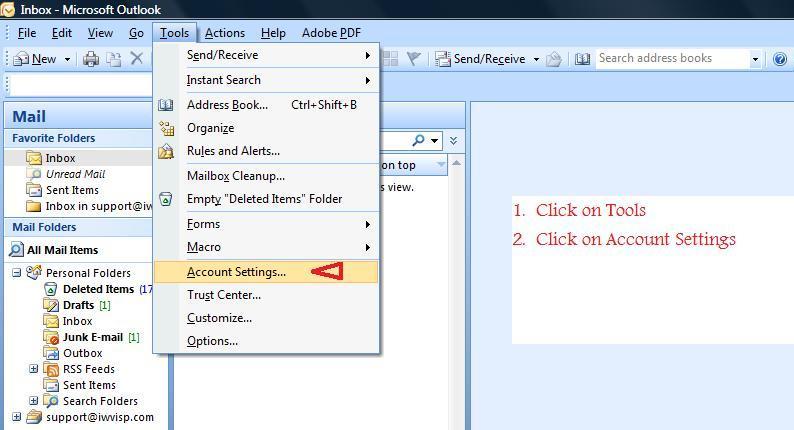
Once it is open, click on Tools at the top of the page, and then click on account settings.
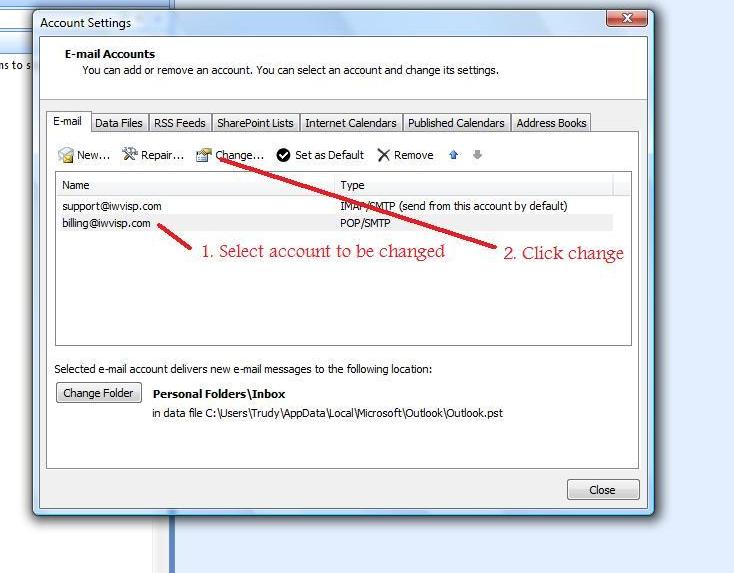
When the window opens up, highlight the account you would like to change, and then click on the Change button at the top.
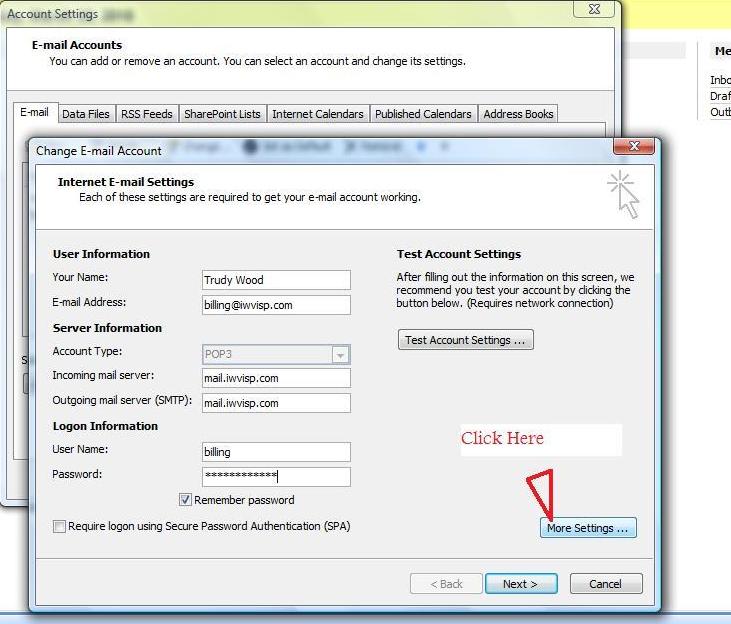
When the settings window opens up, click on the More Settings button near the bottom
Now, click on the Outgoing Server tab at the top of the settings window that just opened, and check the box next to "My outgoing server (SMTP) requires authentication"
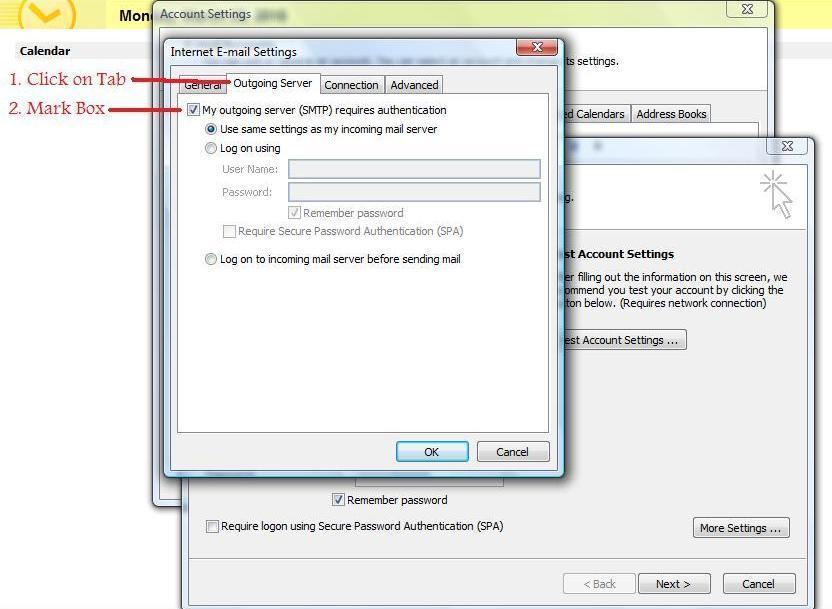
Click Ok at the bottom.
Then Click Next and then finish.
Now click the close button in the lower right corner.
Congratulations, you have finished updating your settings.
[Welcome to IWVISP]
[Customer
Support] [Local
Events]
[News
Headlines] [Businesses]
[Users]
[Sign
Up Here!]
If you
have other questions or comments about our web service contact:
support@iwvisp.com